A short time ago I needed to make a calendar in a spreadsheet in which all the months are situated vertically one after the other on the same sheet.1
There are two possible solutions here:
- Find a calendar for 2026 and then laboriously type in numbers. (And then laboriously go back and proofread the entire thing to figure out where I made a mistake, because mistakes are inevitable in this method.)
- Find a program that will output the dates for 2026 as a text file, and then just copy them from the text file into a spreadsheet.
I don’t know about you, but method #2 sounds a lot easier, not to mention faster. The question is now just a matter of finding a program that will do that.
Contents
Default Linux Options
As it turns out, most Linux distros ship with both cal and ncal. The problem here is that I needed the calendar to be continuous, not separate months. The man pages for both of these include the line:
The new format is a little cramped but it makes a year fit on a 25×80 terminal.
Well, it’s worth a shot, anyway. Here is the output of the cal 2026 command:
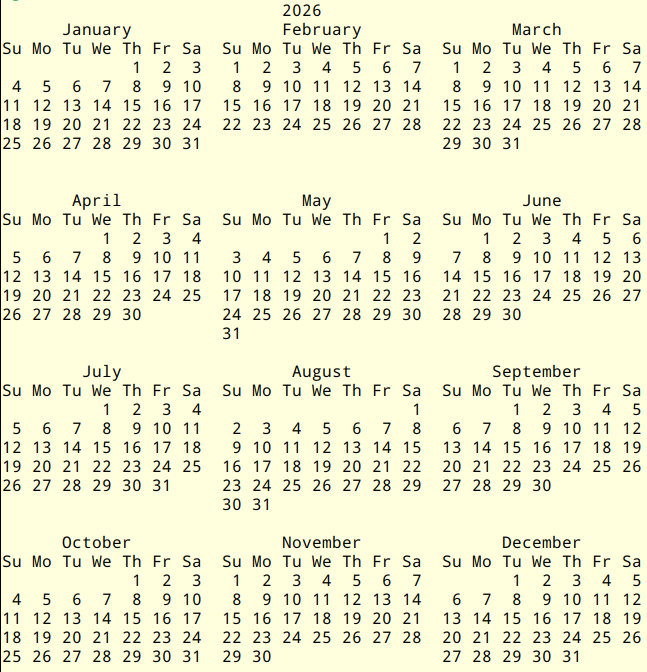
I could make that work, but it would require quite a bit of copy and paste, as I would have to copy each month separately.
Let’s see what ncal 2026 does:
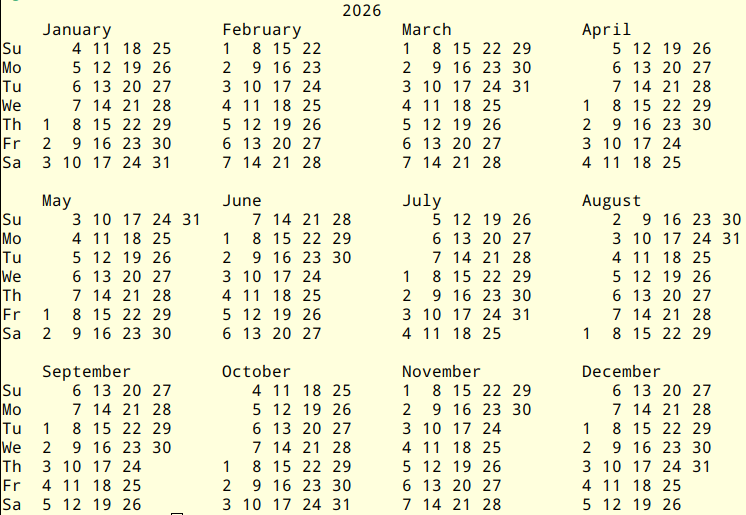
Oof, that’s even further away from what I was looking for. Back to searching it is, then.
Finding khal
For what it’s worth, I did spend some time playing around with the options for both cal and ncal, and got nowhere. It was time to find a different program. I had my fingers crossed that there was one.
Fortunately there is: khal2.
As it turns out, khal is an actual calendar program that you can can add events to and which can synchronize through CalDAV (so it may be the simple scheduling solution we are looking for, as soon as I figure out how to use CalDAV). But all I was really interested in was whether or not I could get a linear calendar listing I could copy and paste into a spreadsheet.
I did some experimenting, and it’s actually a fairly simple task. All I had to do was to tell khal to create a calendar and then to specify beginning and ending dates:
$ khal calendar 2026-01-01 2026-12-31
which gave me this ouput:
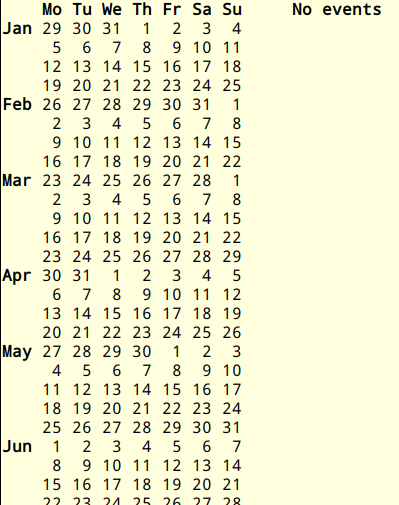
Now we are getting somewhere. That’s exactly what I’m looking for. (Notice that khal defaults to Monday as the first day of the week, which is what I wanted. If you want your week to start on Suday, see below.)
Importing into LibreOffice Calc
Once I had that output, getting it into a LibreOffice spreadsheet is fairly simple, using the text import dialog. Once I had generated that output and copied it from the terminal I opened up a new spreadsheet and went to Edit » Paste Special » Paste Special to give me the option to use the text import dialog:
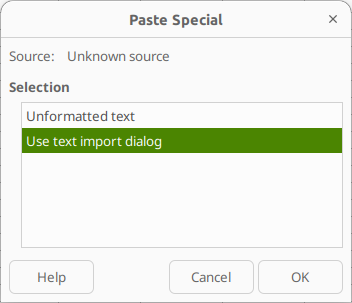
I clicked “OK” and LibreCalc presented the text import options:
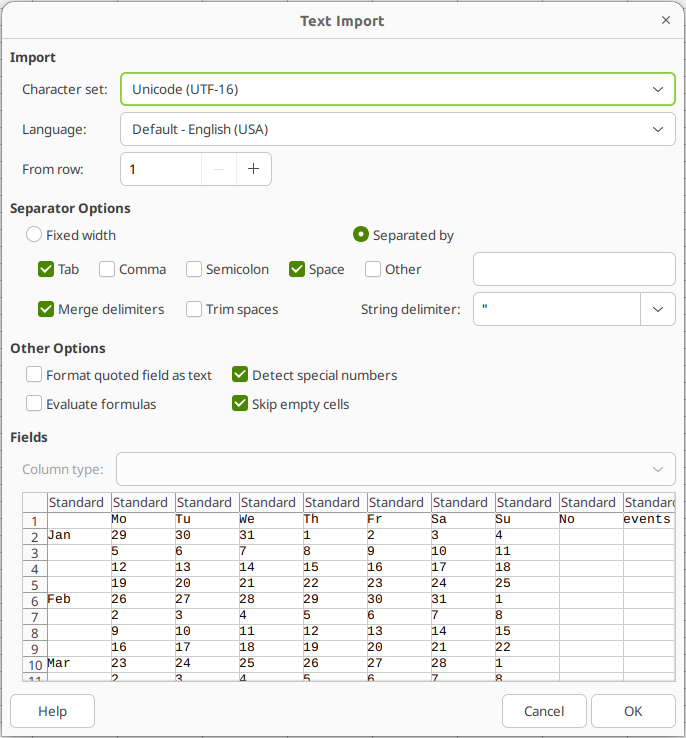
The default delimiter (the character that separates data you want to be in different cells) is Tab. Because this is text, I ticked the “Space” option and because there is sometimes more than one space separating text, I also ticked the “Merge delimiters” option. The nice thing about this dialog box is that it previews how your data will be imported at the bottom, so you can play around with options until it looks the way that you want. Once I was happy with the preview, I clicked “OK” and my calendar was ready to go:
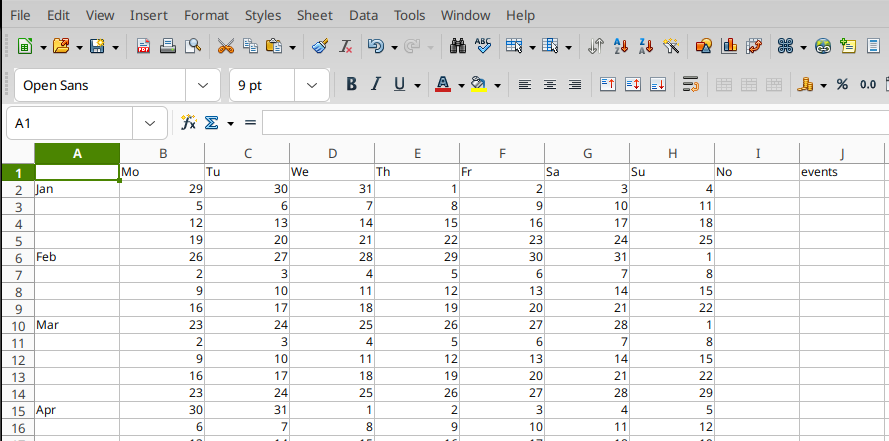
At this point, it’s just a matter of formatting and adding items to our production schedule.
You can also save a few steps by telling khal to export your calendar to a file and then open your file in LibreOffice Calc, which will take you directly to the Text Import dialog box.
Blank Lines
It may be that you want a calendar with blank rows beneath the data to make it easier to enter events. (This way you don’t have to go to the end of the cell before you start typing to avoid overwriting the date.) The way to do this is send khal‘s output to a file:
$ khal calendar 2026-01-01 2026-12-31 > 2026.txt
and then to work a little magic with sed:
$ sed 'G' -i 2026.txt
which will then give you a text file that looks like this:
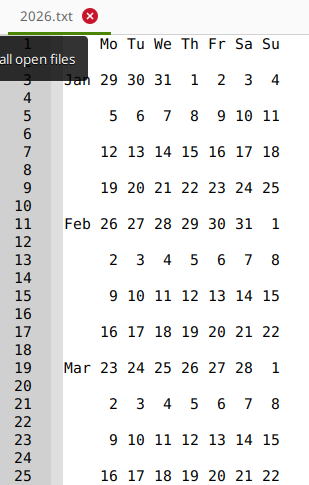
Importing that into LibreOffice Calc will give you a calendar with blank rows beneath the dates that you can enter data in. (If you want to know what sed is doing there, I recommend you read this.)
khal Options
You may have noticed that khal defaults to Monday as the first day of the week, which is fine by me. If you want Sunday to be the first day of the week, you can edit the config file (which for me is at /home/USER/.config/khal/config and add a “firstweekday” option to the [locale] portion of the config file:
[locale]
timeformat = %H:%M
dateformat = %Y-%m-%d
longdateformat = %Y-%m-%d
datetimeformat = %Y-%m-%d %H:%M
longdatetimeformat = %Y-%m-%d %H:%M
firstweekday = 0
Per the khal man pages, 0 represents Monday and 6 represents Sunday.
And that’s it! You now have all you need to know to easily create a calendar in a spreadsheet.
Notes
1 See https://github.com/pimutils/khal.
2 Whether or not this is the best way to make a calendar is debatable, but this is what the job required. It’s for a simple production schedule, and using scheduling software seems like overkill in this case. Keep it simple.
The featured image is by Towfiqu barbhuiya from Pexels: https://www.pexels.com/photo/close-up-shot-of-a-calendar-9036980/
https://techblog.kjodle.net/2025/12/04/easy-spreadsheet-calendars-with-khal/